

A meeting room's Teams Android panel got kicked out with 'Device administrator is disabled'

A meeting room’s Android panel, used to run Teams meetings, got force-signed-out one day with no warning, landing on a sign-in screen topped by a glaring red line: “Device administrator is disabled. Contact your admin.”, with a note underneath that the account needed to sign in again. Following the on-screen “Refresh code” prompt just looped back to the same screen - the account never actually signed back in.
First instinct: assume it’s the device or the account
The obvious first guess for an error like this is an expired password or a hardware fault. But two words in the message matter: “Device administrator” and “disabled” - this isn’t an authentication failure at all. The device’s own management mode had been judged untrustworthy, which is why the system signed it out outright instead of simply asking for a password.
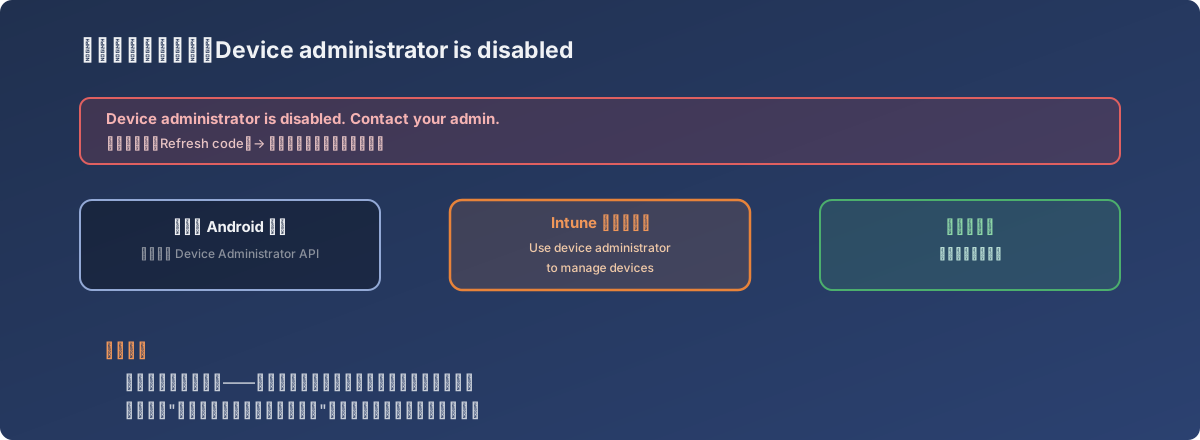
“Refresh code” refreshes the account token - it can’t refresh a management mode that’s been marked untrusted
Root cause: an easily-overlooked “legacy management” prerequisite in Intune
Turning the investigation toward the Intune admin center surfaced the actual cause: some Teams-certified Android meeting-room devices - the ones that don’t support full Android Enterprise management - still rely on the older “Device Administrator” API to accept MDM management, and whether that management path even works depends on a tenant-level prerequisite toggle:
Intune admin center → Devices → Android → Android Enrollment → Android device administrator → Prerequisites → Personal and corporate-owned devices with device administrator privileges → Use device administrator to manage devices
Whether this toggle was off by default, or got switched off during some later tenant configuration change, every device relying on this legacy management path gets re-evaluated as running an untrusted management mode - even devices that had been running fine for a long time. Nothing changed on the device itself; the change happened on this one toggle in the tenant backend.
The fix
Log into the Intune admin center, navigate to the path above, and check “Use device administrator to manage devices” (enabling it means granting Microsoft permission to share device and user information with Google, which is the actual prerequisite for this management mode to function). Once saved, the meeting-room device can go through the sign-in flow again and recovers normally.
Lessons
- An error like “device administrator is disabled” is about the management mode, not the account. A sign-in failure that specifically mentions “administrator” or “disabled by policy” should point first at MDM/tenant policy toggles, not passwords or network connectivity;
- Not every device that “supports Teams certification” runs the same modern management path. Some meeting-room hardware, for compatibility reasons, still depends on the legacy Device Administrator API - and its availability rides on a tenant-level prerequisite toggle that’s easy to lose track of. Worth flagging separately in the device inventory;
- When multiple devices go dark simultaneously with nobody having touched any of them individually, look at the tenant-level configuration of the management platform first, not device-by-device - the blast radius here was “every device on the legacy management path,” not one unit failing on its own.