

Same building, seemingly the same network - so why couldn't this one PC reach the printer?

A PC in the office couldn’t connect to the shared printer, reported simply as “the network’s been flaky.” Under normal circumstances, every PC in the same building should sit on the same subnet, so the instinct is to suspect the printer itself or its driver. But a scan with Advanced IP Scanner turned up something else entirely: this PC’s IP wasn’t even in the printer’s subnet.
What the scan found: a subnet that shouldn’t exist
The printer’s subnet was 192.168.8.x, the same range as almost every other device in the office. The problem machine, though, had landed on 192.168.30.x - a range almost never used. Digging further revealed it was connected to a WiFi router (a TP-Link Archer C5) a vendor had installed earlier to extend coverage into a corner of the office.
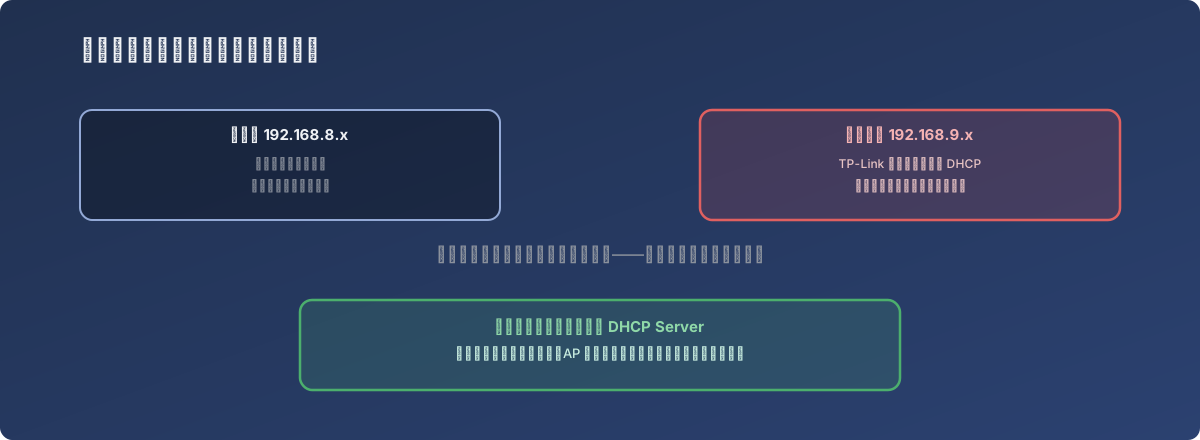
It looks like the same building on the same WiFi name - it’s actually two networks that can’t see each other
Root cause: the router was never configured for bridge/AP mode
Logging into the TP-Link router’s admin panel made the problem obvious: its DHCP server was still enabled, running its own independent address pool (192.168.9.100 through 192.168.9.199). In other words, while this device was physically wired into the same building’s network, logically it had turned itself into an independent router rather than a simple signal-repeating Access Point - any device that joined its WiFi got handed an address from this separate pool, becoming an island: internet access worked fine, but the main network’s printer, file server, and everything else were completely unreachable.
This class of “a router deployed as an AP but never had its own routing function turned off” oversight is common, especially with vendor-installed equipment on a tight schedule - if the device connects and gets online, the job is considered done, and rarely does anyone go back to check whether it’s quietly running its own DHCP.
The fix
Logging into the router’s admin panel, navigating to DHCP settings, and switching the DHCP Server from Enable to Disable turned it into a pure signal-repeating access point. Devices connecting to it re-acquired an address and correctly landed on the 192.168.8.x subnet alongside everything else, resolving the printer connectivity issue.
Lessons
- “Has internet access” isn’t the same as “on the same network.” A device extending WiFi coverage, if not properly configured as a pure AP, silently drops connected clients into an isolated address range - the symptom looks like internet access but no visibility into local resources, which is easy to misdiagnose as “flaky network” rather than “misconfiguration”;
- When troubleshooting “can’t reach a device on the local network,” the first step should be confirming which subnet the affected device is actually on, not suspecting the target device (the printer) itself - starting with the printer here would have pointed entirely in the wrong direction;
- Acceptance criteria for vendor-installed network equipment can’t just be “does it get online” - it should also confirm the device is correctly configured as a bridge/AP and hasn’t accidentally enabled its own DHCP. This kind of oversight almost never surfaces right after installation; it usually waits until some user happens to connect to it.