

One person's crashed ERP client, without ever exiting, dragged down the entire shared server

Several users shared the same Remote Desktop Session (RDS) server for daily work. One user’s ERP client (SAP Business One) crashed - but instead of ending its process cleanly, it kept consuming more and more memory instead of releasing it. Because the server was shared, this one user’s misbehaving process quickly squeezed the server’s overall memory, degrading the experience for everyone else on it.
Looking for a “kick by session” switch, finding only a “kick by process” one
The first instinct was to find some automated way to clean up a user once their memory usage crossed a threshold, rather than relying on someone noticing it manually and ending the process by hand each time. Digging through Windows’ built-in tools turned up a real gap:
- Windows’
taskkillcommand can filter and act on a single process’s memory usage (e.g., “force-end anything using over 1GB”); - But if a user’s session has multiple processes running at once, none individually looking especially outrageous, the total across all of them can still be substantial -
taskkilland similar tools have no way to filter or clean up based on “total memory used by a given user session.”
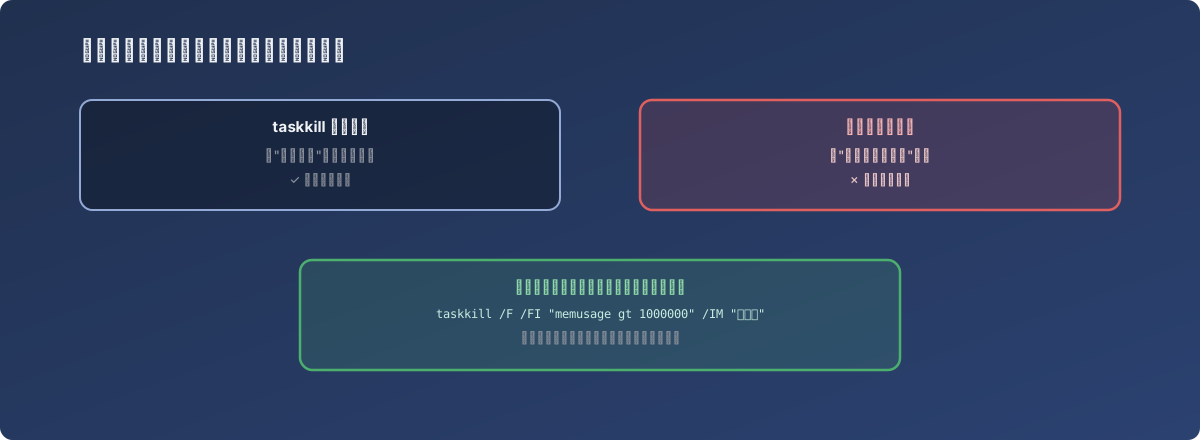
No wrench in the toolbox fits the bolt exactly - use the one that’s closest
Settling for a narrower but practical alternative
With no ready-made way to clean up by total session memory, the fallback was a more specific but genuinely useful alternative: since the source of this particular misbehavior was already known - a specific application process (the ERP client) - target that exact process name with a rule that force-ends it once memory usage crosses a threshold:
taskkill /F /FI "memusage gt 1000000" /IM "SAP Business One.exe"The logic: any instance of this named process using over roughly 1GB (1,000,000 KB) of memory gets force-ended. This isn’t a general solution - a memory leak from a different application crashing wouldn’t be caught by this rule - but it precisely targets “this one process already known to misbehave,” turning something that previously required manual monitoring to catch into something that cleans itself up automatically.
The response
This taskkill rule was set up as a recurring scheduled task, acting as an automatic safety net for a known problem application. The behavior was also reported to the application vendor, to confirm whether failing to release memory after a crash is a known defect and whether a version update addresses it at the root.
Lessons
- A built-in tool’s filtering dimension doesn’t necessarily match the dimension the actual problem is measured in. “Process” and “user session” are two different units of measurement here - the tool natively supports the former, but the problem’s real unit of attribution is the latter. This kind of dimension mismatch is exactly where troubleshooting tends to get stuck;
- When the ideal solution isn’t available, settling for a narrower fix scoped to a known specific scenario is a reasonable way to stop the bleeding. Rather than trying to solve “every possible memory leak” in one shot, targeting “this one process that’s already been misbehaving repeatedly” delivers more value for the effort;
- On shared infrastructure (a server used by multiple users at once), one application’s misbehavior gets amplified into a problem affecting everyone. In this kind of environment, tolerance for a single application’s crash behavior should be lower than on a dedicated desktop - setting up an automated safety net early prevents “one person’s crash” from becoming “everyone’s incident.”