

A RemoteApp icon vanished without warning, because the server never actively checked whether you were still there

Users reported that RD Web app icons would vanish without any warning at all while using RemoteApp, requiring a fresh login to get things working again. This class of problem is hard to troubleshoot precisely because, from the server’s side, the relevant session records showed no clear error - making it difficult to tell right away which layer the problem was actually in.
The client and server can disagree about whether a session is still alive
Windows Remote Desktop Services has a policy that’s easy to overlook - “Configure keep-alive connection interval.” Its job is to have the RD Session Host server periodically and actively check session state, so the server’s record of a session stays consistent with the client’s actual state.
The policy’s own description is explicit about this: if the connection between client and server is unexpectedly interrupted (a network blip, say) without going through a clean “disconnect” handshake, the session on the server side can remain in an “active” state even though the client has physically disconnected. If this policy isn’t enabled, the server never proactively checks whether that state is still consistent at all - and on this particular server, the policy’s state was indeed “Not Configured.”
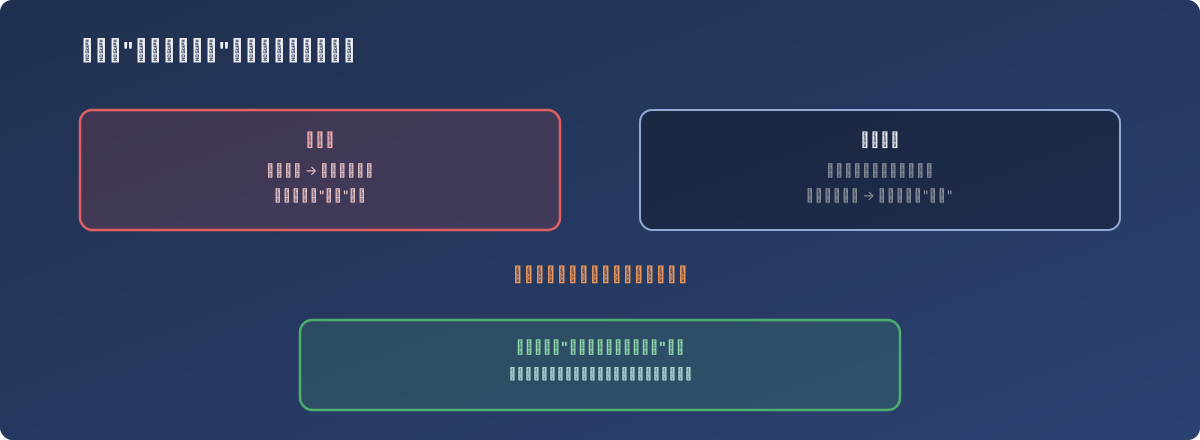
If the server never asks “are you still there,” it will never find out the other side already left
Why this shows up as “the icon suddenly disappeared”
Under normal conditions, a clean disconnect completes its full handshake, and both sides’ understanding of the session state stays aligned. But if the interruption is “unclean” - a brief packet loss at the network layer, a silently dropped connection - the server-side session state can drift out of sync due to the lack of an active verification mechanism. The next time the user tries to access the RD Web app, what they see is the icon disappearing without warning, because the session state each side is holding has already diverged, and neither side has anything actively fixing that divergence.
The fix
In Group Policy Editor, navigate to Computer Configuration > Administrative Templates > Windows Components > Remote Desktop Services > Remote Desktop Session Host > Connections, and enable “Configure keep-alive connection interval,” setting a concrete check frequency (in minutes). Once enabled, the server periodically and proactively verifies whether the session state still matches the client’s, reducing the abnormal behavior caused by this kind of state drift.
Lessons
- A policy sitting at “Not Configured” doesn’t mean it’s unimportant - it may simply be that nobody ever thought to configure it. This class of easily-overlooked policy usually has a clear description documented, but nothing proactively flags “this might be relevant to the problem you’re currently troubleshooting”;
- What the client and server each believe about “is this connection still valid” should, in theory, stay aligned - but in the reality of imperfect networks, it can diverge. The entire point of a keep-alive check mechanism is to actively detect and correct that divergence, rather than passively assuming both sides stay in sync forever;
- When troubleshooting a problem with no clear error but abnormal user-facing behavior, it’s worth checking whether some related “active verification / keep-alive” policy is sitting disabled. The error messages for this class of problem are usually vague or nonexistent, but there’s often a specific, enable-able setting behind it.