

Making every session host in an entire RDS farm default to Acrobat Reader for PDFs

A newly built RDS session host had a standard set of software installed - Chrome, Acrobat Reader, the SAP client, and others. In a multi-user remote-work setup, one easily overlooked detail: which application opens when any given user double-clicks a PDF? By default, Windows might pick Edge’s built-in PDF reader, while the company wanted everyone standardized on Acrobat Reader - so that annotations, signatures, and print layout match what everyone’s used to on their own computers.
Manual settings only take effect for “this one login”
The obvious approach is logging into the server and going to Settings → Apps → Default apps → Choose defaults by file type → .pdf, selecting Acrobat Reader. The problem: this setting hangs off the currently logged-in user account. An RDS session host is meant to be logged into by dozens or hundreds of different domain accounts in rotation - setting it once on the admin account doesn’t mean the next employee logging in with an ordinary account will see the same default. This class of setting is, in essence, “every user clicks through it once on first login” - completely unworkable on a server shared by many users.
The correct path: DISM export plus a unified Group Policy push
Windows provides a mechanism called Default App Associations - an XML describing “which file type should open with which program” - that can be pushed to every machine in an entire domain via Group Policy and applied uniformly at user login.
Step one: on a machine where the default app has already been configured manually, use DISM to export the current association settings into a template:
mkdir C:\Temp
dism /online /Export-DefaultAppAssociations:C:\Temp\DefaultApps.xml
The exported file includes association rules for every file type on that machine (video, images, web links, and so on) - and it’s not small. Open it and find the .pdf line to confirm it’s bound to the right program identifier - in this case Acrobat.Document.DC (Adobe Acrobat).
Step two: trim this file down to only the one entry that actually needs to be enforced, leaving every other file type’s default up to individual user preference - so this policy doesn’t accidentally override users’ other file-type defaults along with it:
<?xml version="1.0" encoding="UTF-8"?>
<DefaultAssociations>
  <Association Identifier=".pdf" ProgId="Acrobat.Document.DC" ApplicationName="Adobe Acrobat" />
</DefaultAssociations>
Step three: put this trimmed XML into the domain controller’s SYSVOL share - a location that is already a domain-replicated store reachable by every machine in the domain, no need to maintain a separate file-server path:
\\corp.local\SYSVOL\corp.local\scripts\RDS\DefaultApps_PDF.xmlStep four: create a Group Policy pointing at this file:
Computer Configuration
  > Policies
  > Administrative Templates
  > Windows Components
  > File Explorer
  > Set a default associations configuration file
Set the value to the full SYSVOL path of that XML, and enable it.
Scope of effect: applied at login, not instantaneous
This policy takes effect at user login, not the instant it gets pushed out to already-logged-in sessions. Run gpupdate /force on both session hosts to pull the new policy - after that, any newly logged-in user (regardless of which account) opening a PDF goes straight to Acrobat Reader, with nobody needing to manually click through the setting.
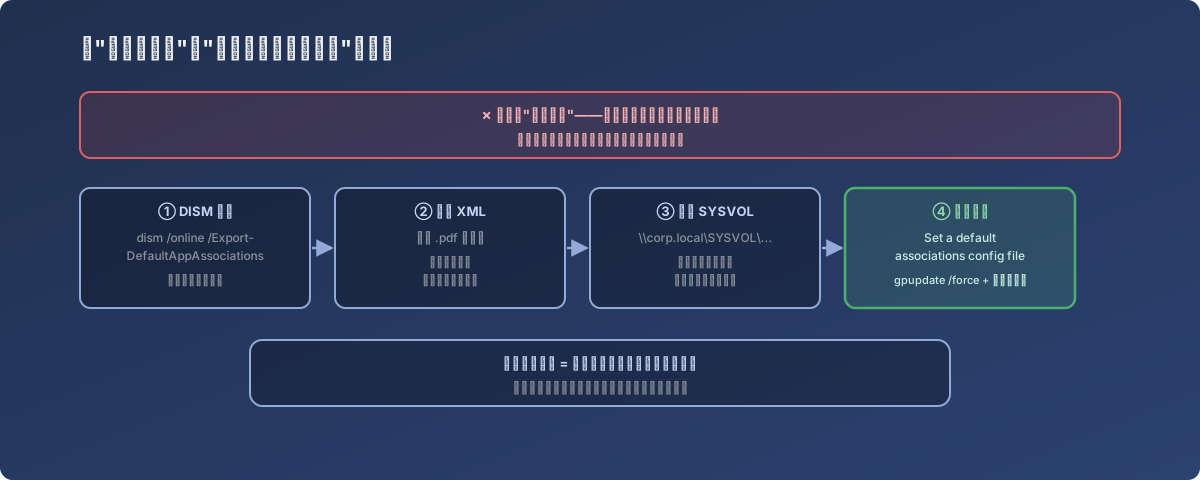
Between “click through a setting once” and “permanently in effect for everyone” sit four steps: export, trim, drop into SYSVOL, create the Group Policy
A quality-of-life tweak noted along the way
Acrobat Reader’s first launch throws up a batch of “try Acrobat Pro” upsell prompts, which in a multi-user environment means everyone has to dismiss them once - annoying at scale. In the same maintenance pass, a PowerShell script was used to bulk-write Adobe’s own officially-supported FeatureLockDown registry keys (one set each for the 32-bit and 64-bit views) to turn off these upsell popups and in-app upgrade nudges - this class of “kill a bundled app’s own marketing popups via registry policy” move is a very common cleanup step on multi-user shared servers.
Lessons
- Settings like “default app for opening a file type” are, by default, tied to the user account, not the machine. On any multi-user shared server (RDS, VDI, a lab classroom), any “click through it once” approach is a non-starter - you need to find the path that pushes it uniformly by machine or by domain;
- DISM’s default-app-associations export brings out every single file type - remember to trim it down to only what actually needs to be forced. Dropping the whole exported file straight into a Group Policy effectively pushes that one reference machine’s default app for every single file type onto everyone as a mandatory standard, inviting unintended overrides;
- SYSVOL is the natural place to drop this kind of cross-domain distribution config file. It’s already a share replicated across domain controllers - no need to separately worry about “what if the file server goes down”;
- The moment a Group Policy takes effect is at login, not the instant the policy is pushed. When testing this class of policy, confirm the target machine has already pulled the policy (
gpupdate /force), then verify with a fresh login session - not by waiting around inside an old one.