

Installed Duo two-factor on a new RD Web server, and it couldn't reach Duo afterward - the problem was four registry keys that have nothing to do with Duo

A newly built RD Web Access server needed to join the company’s existing Duo two-factor authentication setup. The process sounds straightforward: add a “Microsoft RD Web” type application in the Duo admin console’s application catalog, get the Client ID, Client Secret, and API Hostname it generates, download the matching Duo for Remote Desktop Web Access installer, install it on the server, enter that trio into the installer wizard, reboot, done.
After installing, this server couldn’t properly shake hands with Duo’s cloud service.
The symptom had nothing directly to do with Duo itself
The Duo installation itself threw no errors - the client ID, secret, and API hostname were all entered correctly, and the installer wizard sailed through to Finish. The problem lived one layer deeper: whether this server, on its own, could establish a connection to Duo’s cloud API using a modern TLS protocol.
The key background here: components like Duo for RD Web Access, built on .NET Framework, decide which encryption protocol version to use for network requests based on a set of .NET Framework registry settings - not on Duo’s own configuration options. Older versions of .NET Framework default to a preference for older protocol negotiation behavior; if the server’s operating system has already disabled legacy TLS versions at the OS level (the current security baseline norm), and the .NET application hasn’t been explicitly told “please prefer whatever the system currently supports,” the handshake fails quietly on both sides with no obvious error.
The fix: four registry keys, none of them in Duo’s interface
Microsoft’s own standard fix is to make .NET Framework use the strongest cipher suites the system currently supports, rather than its own built-in legacy preferences - requiring changes to both the 32-bit and 64-bit registry paths simultaneously:
[HKEY_LOCAL_MACHINE\SOFTWARE\Microsoft\.NETFramework\v4.0.30319]
"SchUseStrongCrypto"=dword:00000001

[HKEY_LOCAL_MACHINE\SOFTWARE\Microsoft\.NETFramework\v4.0.30319]
"SystemDefaultTlsVersions"=dword:00000001

[HKEY_LOCAL_MACHINE\SOFTWARE\Wow6432Node\Microsoft\.NETFramework\v4.0.30319]
"SchUseStrongCrypto"=dword:00000001

[HKEY_LOCAL_MACHINE\SOFTWARE\WOW6432Node\Microsoft\.NETFramework\v4.0.30319]
"SystemDefaultTlsVersions"=dword:00000001
SchUseStrongCrypto stops .NET Framework applications from falling back to a batch of cipher suites it ships with that are now considered outdated and insecure; SystemDefaultTlsVersions stops the application from deciding which TLS version to use on its own, deferring instead to whatever protocol policy is configured at the OS level. Together, the effect is “let this program, written against an older .NET Framework, actually use the modern TLS the current system accepts.” These four keys correspond to one set each for the 32-bit and 64-bit registry views - miss one set, and processes running under that bitness keep the old behavior.
Once the registry is changed, the server needs a reboot for the change to take effect on the already-loaded .NET Framework runtime. After reboot, Duo for RD Web Access could finally complete the authentication handshake with the cloud correctly, and the RD Web login page began correctly prompting for Duo’s second factor.
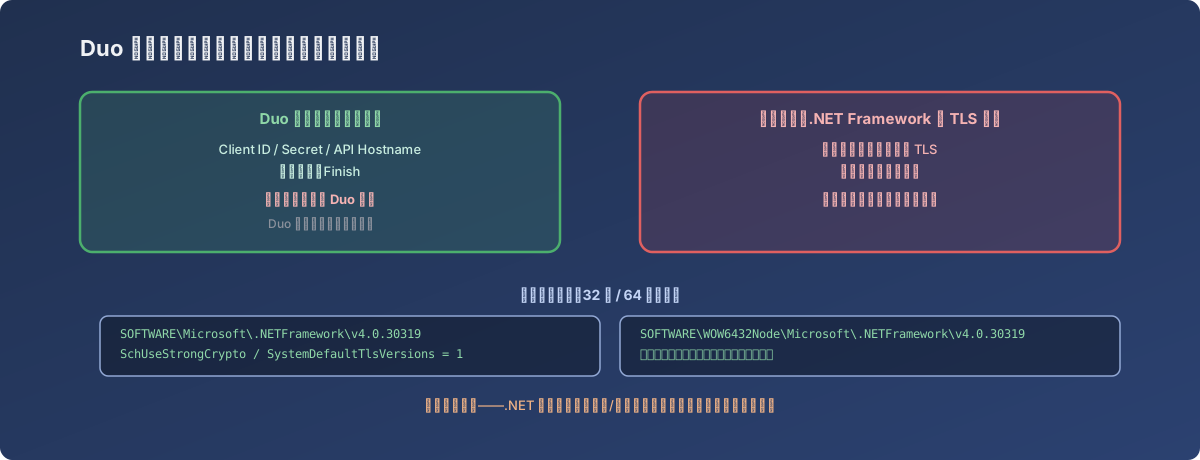
Not one option in Duo’s install screens has anything to do with these four registry keys - yet they decide whether this install actually works
Lessons
- A piece of software “installing successfully” and “actually working” can be separated by a system-level prerequisite that’s completely invisible in its own interface. Especially for components built on older runtimes (.NET Framework, Java, etc.), whether they follow the system’s current security baseline when making TLS connections is often decided by global runtime-level settings, not by the software’s own configuration options;
- The
SchUseStrongCryptoplusSystemDefaultTlsVersionspair is the standard move for getting an older .NET Framework application to “catch up” to the system’s current TLS policy. Any legacy .NET Framework component that makes outbound HTTPS requests and behaves strangely on a newly hardened server deserves a check of these four keys first, before reaching for a reinstall or suspecting the software itself is broken; - The 32-bit and 64-bit registry views need to be set separately. The same logical setting physically exists in two places on Windows (
SOFTWARE\...andSOFTWARE\WOW6432Node\...) - change only one, and processes running under the other bitness won’t follow; - Changes to this class of low-level runtime setting almost always require a reboot to take effect. .NET Framework’s crypto policy is read at process/system startup and won’t apply to services already running - reserve a reboot window before making the change.