

Granted a colleague local admin rights, and the policy quietly got stuck at the 'assignment' step

A colleague’s laptop at the subsidiary runs two business applications (a social-insurance filing client and a banking-side collaboration tool), and both demand an admin password on every single login - not because installation failed, but because both applications are designed to require running as administrator. It happens often, several times a month, and every time means remoting in and typing the password by hand - a drain for everyone involved.
The first instinct was “try reinstalling”: uninstall and reinstall, run Windows Update and reboot - the login screen kept popping the same permission prompt regardless. This is the point to confirm one thing: a permission prompt that keeps recurring and isn’t solved by a “new version” or a reboot is very likely never an installation problem at all - it’s that this account simply doesn’t have local admin rights on this machine. Manually adding the user to the local Administrators group directly on the machine isn’t an option either - the device is Intune-managed, and a hand-edited group membership either gets periodically reverted by the managed policy or simply can’t be touched.
Starting from an existing template: group per person, permission per group
The company already has a working pattern for “this specific person needs local admin rights,” copied from a policy originally set up for an executive: don’t attach the permission directly to a specific user object - create a new Azure AD security group containing only that one person, then use Intune’s “Local user group membership” policy to designate that group as local administrators. The benefit is direct: revoking the permission later just means deleting the group or emptying its membership, with no need to go back and edit this policy; the permission boundary is also self-evident - the policy’s name literally states whose it is.
Following that pattern: first create a security group containing only this colleague, then create a new Local user group membership policy under Intune’s Endpoint Security → Account Protection, following the same naming convention.
Stuck at the assignment screen: “No groups found”
The configuration reached its final step - Assignments - and no matter what got typed into the search box, it stayed empty: “No groups found.”
The reason is simple but easy to overlook: a freshly-created security group needs a moment to land in / become searchable in the directory, and the policy wizard’s assignment screen searches existing objects in real time - the group had just been created and the wizard was switched to immediately, with no time gap between the two. The fix is going back, confirming the group is now searchable normally in the Groups list (refreshing a few times if needed), then returning to the policy’s Assignments screen to search again and check it off.
This step is easy to skip without noticing: the policy wizard lets you keep clicking Next all the way to Review + create with Assignments left empty, and the policy itself is created successfully regardless - it simply isn’t assigned to anyone. It exists, but takes effect for no one. Looking back at the record, that exact gap is why the first attempt had zero effect - it had to be revisited to fill in the assignment, then wait out another Intune MDM sync cycle before the policy actually pushed to the device.
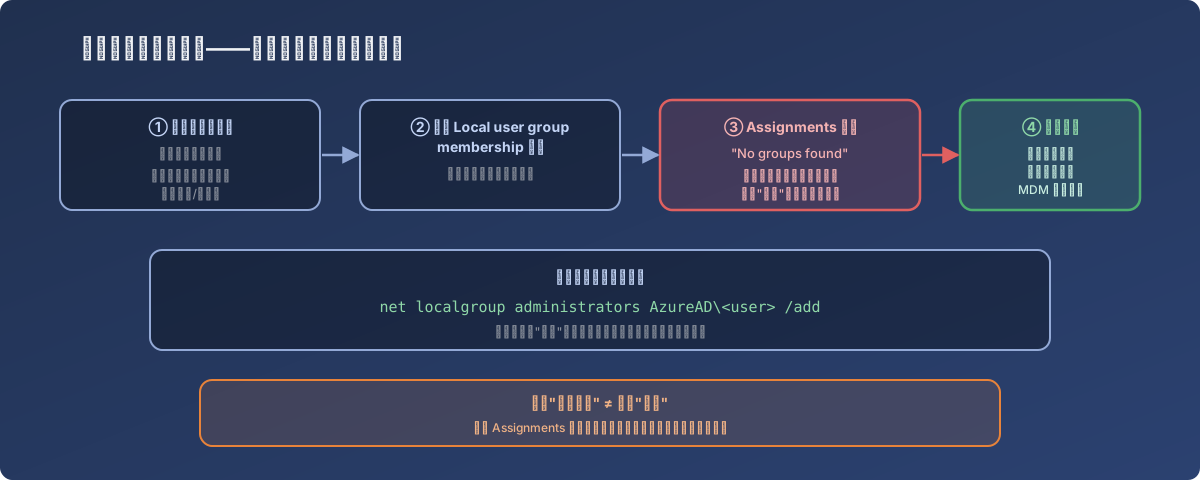
Between a policy “being created successfully” and a policy “taking effect” sits an easily-skipped assignment step
Underneath, it’s really just one command
The same set of notes left behind a simple verification command that says exactly what this GUI operation amounts to underneath:
net localgroup administrators AzureAD\<user-principal-name> /addIntune’s “Local user group membership” policy is, at its core, executing a net localgroup-style command on the managed device on your behalf, mapping cloud group membership onto the local machine’s local group membership. Understanding this layer tells you where to look when a policy has “applied” but the person still isn’t in the local group: policy sync status, whether group membership actually landed, or whether the local group itself is being overwritten by another policy.
Lessons
- When software keeps demanding an admin password and neither a new version nor a reboot fixes it, suspect permissions before the install itself - the correct troubleshooting order is “does this account actually have admin rights on this device,” not another round of reinstalling;
- Creating a dedicated security group per person and assigning the permission to the group is cleaner than attaching a user directly to a general admin policy - revoking access later is just deleting the group, and the policy’s name doubles as the best permission ledger;
- The Intune policy wizard lets you click through to completion with Assignments left empty - “policy created” is not the same as “policy in effect”; when you reach the Assignments screen, confirm the target group was actually found and actually checked;
- A freshly-created Azure AD group may not be immediately searchable in other wizards - if the assignment screen says “no groups found,” first confirm the group itself exists and is searchable, rather than suspecting the wizard is broken.