

Wanted HQ's address book synced to a subsidiary, configured the wrong feature entirely - Cross-Tenant Sync and Teams Shared Channels are not the same thing

HQ’s tenant has over 200 active mailboxes with frequent new hires. The goal this time was modest: let users in the subsidiary’s tenant search HQ’s directory entries (name, email) in real time, without manually maintaining contacts every time someone joins.
Per Microsoft’s own documentation, this need maps to a feature called Cross-Tenant Synchronization - so the whole thing got configured accordingly: on the subsidiary’s tenant (the target tenant), Inbound Access was set to allow sync from HQ, with the “automatically redeem invitations” trust setting ticked; on HQ’s tenant (the source tenant), Outbound Access was configured, scoping which users/groups to sync. This step requires Microsoft Entra ID P1 or P2 licensing - fortunately the company’s Business Premium plan already bundled P1, no extra purchase needed.
Configuration done, a “Provision on demand” test on one user - sync succeeded, the user genuinely showed up in the subsidiary’s tenant.
The sync “succeeded”; the experience was a disaster
The trouble was in Teams. The synced user, viewed from HQ’s side of Teams, was still marked “External”; starting a conversation from the subsidiary’s side no longer showed the “External” tag, but the user’s presence permanently displayed “Offline” even when they were clearly online.
This is not a minor blemish. In day-to-day collaboration, “appears online but shows offline” directly misleads the other party into thinking “this person isn’t here” or “my message won’t be seen,” pushing them toward other channels instead - a UX defect serious enough to sink the entire plan on its own. The evaluation was written up flatly as “this sync is completely unusable,” the test user was deleted, and the project was shelved.
Picked back up months later, and the question had been wrong all along
The topic resurfaced later when a subsidiary colleague genuinely needed a Shared Channel with HQ for collaboration - and reopening it produced the key insight:
What had been configured before was the trust setting for B2B Collaboration (the traditional guest-collaboration model), while what Teams Shared Channels actually depend on is a separate protocol entirely - B2B Direct Connect. Both sit under the same “cross-tenant access settings” screen, look like the same thing, and are in fact two completely different paths:
- B2B Collaboration / Cross-Tenant Sync: “brings in” the other party’s identity into your own tenant, creating an object for them - it’s exactly this semantic mismatch that made Teams treat the synced-in user as a “guest” rather than a “natively present user,” producing that eerie offline status;
- B2B Direct Connect: creates no object at all; both sides’ users stay in their own tenants the whole time, communicating directly across a trust bridge between the two Entra IDs - this is the model Shared Channels were actually designed around.
The correct configuration: both tenants, B2B Direct Connect opened both ways
The fix was revisiting the exact same configuration screen and catching the tab that had been overlooked before - the key is not staying on the default B2B Collaboration tab inside “cross-tenant access settings,” but switching to the B2B Direct Connect tab:
- On HQ’s tenant: switch both Inbound access and Outbound access to the B2B Direct Connect tab, choose Customize settings, and set Allow access for both external users and applications;
- On the subsidiary’s tenant: confirm the same - Allow access under the B2B Direct Connect tab for both Inbound and Outbound.
Both tenants, both directions - four checkpoints in total, and missing any one of them breaks it.
Once the trust bridge is up, there’s one more easily-missed switch: policies in the Teams admin center. Under Teams policies, find the Shared channels section and turn on all three toggles - Create shared channels, Invite external users to shared channels, and Join external shared channels.
Waiting: B2B Direct Connect sync is not instant
With every setting confirmed, don’t have someone test it immediately. Entra ID’s cross-tenant trust settings typically take 2 to 6 hours to propagate across Microsoft’s global servers, and testing too early will most likely hit the same error again, manufacturing needless doubt about whether something was misconfigured.
Verify first with a small internal test channel rather than jumping straight to the production channel - that way, even if the trust hasn’t finished propagating, it doesn’t disrupt the team that actually needs it. The criteria for “sync is done” are clean and objective:
- The zero-object check: look in HQ’s Entra ID Users list for the subsidiary’s account - if configured correctly, it simply won’t appear, because B2B Direct Connect creates no guest object and keeps the directory clean;
- The experience check: the subsidiary user opens Teams and sees the shared channel in their standard channel list with a link icon next to it, with no tenant switching required;
- The audit-log check: Entra ID’s audit log shows an “Update cross-tenant access policy” event, confirming the change landed precisely on the B2B Direct Connect parameters without touching any other security policy.
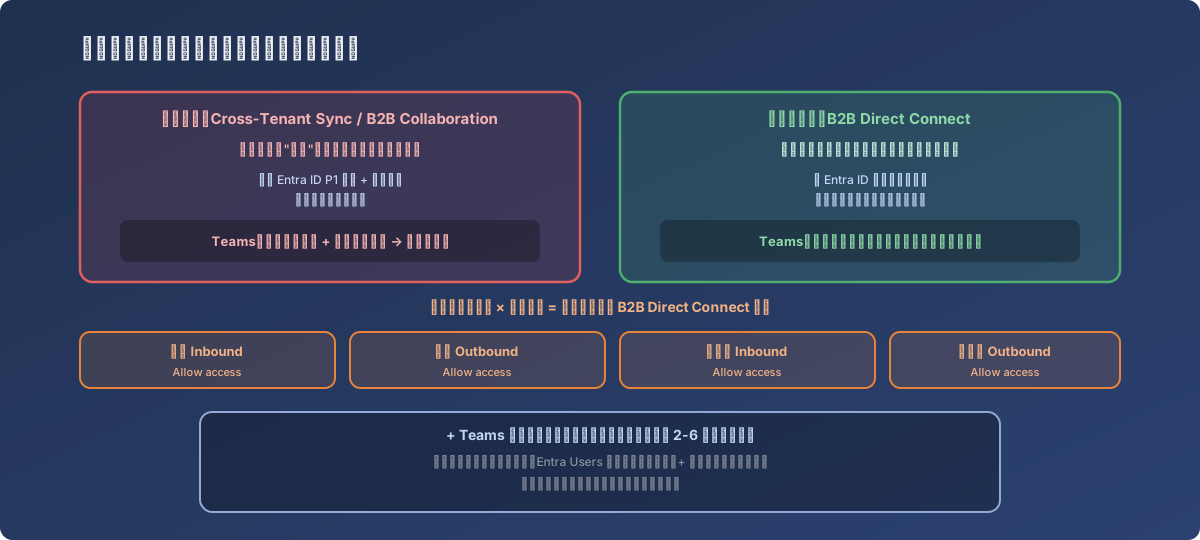
Under the same “cross-tenant access settings” screen hide two protocols that look alike and are nothing alike
An unexpected upside: a better architecture than manually syncing a directory
Looking back after the fix, this setup delivered more value than the original modest goal of “sync the address book”:
- Cleaner file governance: Shared Channel files live in a hidden SharePoint site inside HQ’s own tenant, so HQ’s DLP, retention policies, and eDiscovery rules naturally apply - a plain group chat instead scatters files across individual OneDrives, a nightmare to recover once someone leaves;
- Zero identity-management overhead: the subsidiary’s users have their passwords and MFA managed entirely by their own Entra ID; the moment the subsidiary disables an account, that person’s access to HQ’s Shared Channel is revoked instantly and automatically;
- Build the bridge once, reuse it forever: once the trust bridge exists, any department that later needs to collaborate with this subsidiary can spin up a Shared Channel in seconds, with no backend configuration to repeat.
Lessons
- “Cross-tenant directory sync” and “cross-tenant real-time collaboration” are two different product capabilities - don’t head straight for Cross-Tenant Synchronization just because the requirement sounds like “sync the address book.” Ask first whether the actual end state is “the other party appears in my address book” or “we can collaborate seamlessly inside Teams” - the two map to entirely different configuration paths;
- The B2B Collaboration and B2B Direct Connect tabs inside “cross-tenant access settings” default to the first one, and it’s very easy to miss the switch. For anything involving Teams Shared Channels or channel-level collaboration, always confirm you’re on the B2B Direct Connect tab, not the default one;
- A bizarre “wrong presence status” is often a sign the identity model was wrong from the start, not a simple display bug. A synced-in user being classified as a guest object with a permanently offline status is the system faithfully reflecting “this was never supposed to be a guest relationship” in the first place;
- Don’t test cross-tenant trust configuration the moment you finish it. Confirm all four checkpoints first, then wait out the multi-hour global propagation window, and use the zero-object check plus the audit log as objective acceptance criteria rather than betting on one lucky test.