

The access software said 'fail to read device parameters' - the answer wasn't in the software, it was on the wall and a switch-port LED

Clicking on the main door’s Suprema fingerprint reader in the BioStar client produced one cold line:
Fail to read parameters from Device [ID:xxxxxxxxx]
Device offline. Everything else in the software was normal: the service was running, the device still sat in the list at its registered LAN IP, and every other door worked. In moments like this - “the software says it can’t reach it” - the classic mistake is to keep circling inside the software: restart the service, remove and re-add the device, dig through configuration. This time the approach flipped: walk the physical path first.
Physical stop one: the reader on the wall
At the door, half the answer was already in plain sight: the reader had come off its wall-mount bracket, the body hanging loose with the wiring cavity exposed and the cable bundle under strain. Door-side devices live a hard life - pushed doors, bags, cleaning crews - and popping off the bracket isn’t rare. And bracket separation is precisely what puts stress on the network/power connections inside the cavity.
Dress the cable bundle, confirm the connector and terminals are fully seated, clip the device firmly back onto the bracket.
Physical stop two: the port LEDs in the server room
The other half was in the server room: trace this reader’s patch cable to its port on the PoE switch and watch the lights - link LED up? PoE power delivering? Access readers mostly draw power over PoE, so “device offline” written in physical-layer language can mean either “no link” or “no power”. With the port LEDs blinking normally again, the physical link was done.
Back in the BioStar client, refresh: device parameters read out in full - Operation Mode, Fingerprint, Network tabs all normal. The offline problem ended there, without touching a single line of software configuration.
Finishing the original errand: registering a card
With the device back online, the task that started all this got completed - registering a replacement card (EM 4100) for a colleague. Two practical details worth keeping:
- Card Management → Read Card: no manual typing of card numbers - select this reader as the input device, tap the card on it, and the number reads back directly, eliminating transposition errors;
- Tick Bypass Card for this user (card-only entry, not forcing card+fingerprint combination), then Apply to push to the device.
The Card Issue History shows the full register/revoke trail - a mis-issued card was revoked and re-issued on the spot, with history preserved.
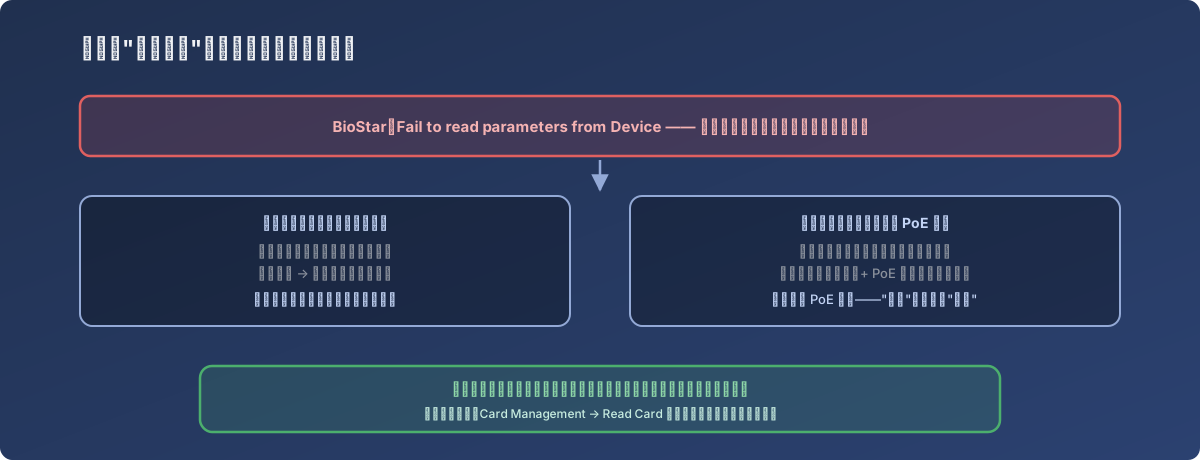
Inside the phrase “device offline”, software causes and physical causes split roughly half-and-half - but the physical check is far cheaper, so it goes first
Lessons
- For door/IoT endpoints reporting offline, the physical-layer check always precedes software troubleshooting - a five-minute walk (mounting condition, cable strain, port LEDs) beats half an hour of remove-and-re-add, and most offline events on this class of device really are physical;
- A door device’s mechanical mounting is part of its network reliability - off-bracket → strained cables → intermittent contact is the standard chain; “is the device firmly clipped to its bracket” belongs on the inspection list;
- A PoE device’s “offline” needs two lights checked - link and power; one glance at the switch separates “network’s gone” from “power’s gone”;
- Register cards with Read Card straight from the device - manually typed card numbers are a breeding ground for silly errors; the reader itself is the best input device. Revoke mis-issued cards immediately so the Issue History keeps a complete trail.