

GoDaddy only gives you a .crt, no .pfx? The private key was there all along

Renewing the SSL certificate for a VPS (running an internal system called Octopus) hit a wall at the last step: the file downloaded from GoDaddy was a .crt, while the server deployment needed a .pfx (the bundle format that includes the private key) — and there was no .pfx, nor a standalone private key file, anywhere in the download.
First reaction: was the request done wrong?
The first suspicion was whether the certificate had been requested the wrong way — should the CSR have been generated in the GoDaddy dashboard instead? Should GoDaddy support be asked for the private key?
The actual truth is simple, just easy to miss behind “the certificate files are incomplete”:
A certificate authority (CA) never supplies the private key. The CA only issues the public certificate body (.crt); the private key, from the moment it’s generated, should only ever exist with the party requesting the certificate — that’s a basic PKI security design. The risk of a leaked private key can’t be something the CA is responsible for.
Where the private key actually is: back where the CSR was born
The standard certificate request flow is: generate a CSR (certificate signing request) on the server → the private key stays local → the CSR goes to the CA → the CA issues the .crt. Which means the private key never left the machine that generated the CSR.
As long as you can identify which machine (or certificate store) generated the original CSR, the private key is very likely still sitting quietly in its store there — it just hasn’t been “paired” yet with the freshly downloaded .crt.
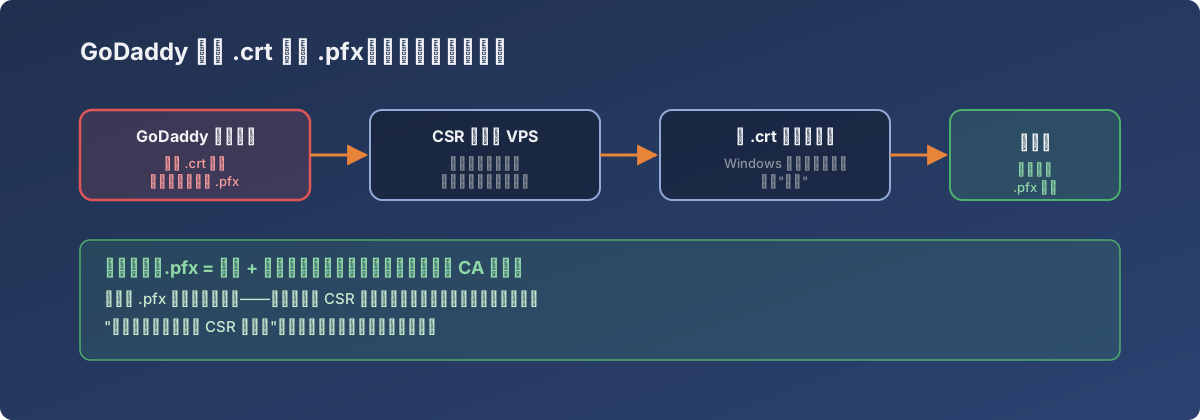
.pfx is just a bundle format — the two puzzle pieces live separately, one at the CA, one with you
Steps
- Identify the machine that originally generated the CSR (in this case, the VPS itself, or whatever server proxied the signing request);
- Import the
.crtdownloaded from GoDaddy into that machine’s certificate store (on Windows: the certificate management consolecertlm.msc, into the appropriate store); - Windows automatically detects a matching unused private key already sitting in the local store; once imported, the certificate’s status shows “You have a private key that corresponds to this certificate”;
- Right-click the certificate and export, choosing the Personal Information Exchange (.pfx) format with an export password — this finally produces a real
.pfxfile; - Deploy the
.pfxto the target server (here, the VPS’s web service).
When this route doesn’t work
If even “the machine that generated the CSR” can no longer be found (decommissioned, or its certificate store wiped), the private key really is gone — the only path left is to generate a brand-new CSR and request a fresh certificate; the old one can never yield a .pfx again. This is exactly why keeping a certificate inventory (recording where each certificate’s CSR was generated) pays off — it decides whether a renewal or migration takes the short road or the long one.
Lessons
- The .pfx isn’t handed to you by the CA — you assemble it yourself. Don’t panic when “the CA only gave a .crt” — first work out where the private key ought to be;
- Returning to where the CSR was born is the only path back to the private key, which is why it’s worth knowing exactly which machine each step of a certificate’s lifecycle happened on before migrating anything;
- The time saved by a certificate inventory (generation location, expiry date, deployment location) usually costs far less than the certificate itself.