

Control Panel showed the right driver version, but fingerprint auth still failed - the device was actually bound to one from a decade ago

A door access system’s fingerprint scanner started failing authentication. Checking “Programs and Features” showed the corresponding fingerprint scanner driver package listed at the latest version - and, oddly, the same driver package appeared twice, with an identical version number. The easy conclusion to stop at is “the driver’s the latest one, so that’s not the problem” - but that conclusion rests on a source of information that isn’t actually reliable.
”Installed driver package version” and “the driver the device is actually bound to” are two different things
Windows’ “Programs and Features” list reflects which driver installer packages have ever been installed on this PC - not “which driver a specific device is currently using.” To see which driver a particular device is actually bound to, you have to go into Device Manager, find that device, and check its Driver tab.
Opening Device Manager here showed the fingerprint scanner reporting “This device is working properly” - no hardware-level error. But clicking into the driver details revealed: the driver this specific device was actually bound to was dated roughly a decade earlier, with a version number that didn’t match the “latest” version shown in Programs and Features at all. In other words, while a newer driver package had genuinely been installed on the PC, this particular fingerprint scanner had, the entire time, remained bound to that older, earlier driver - installing the new package never actually replaced it.
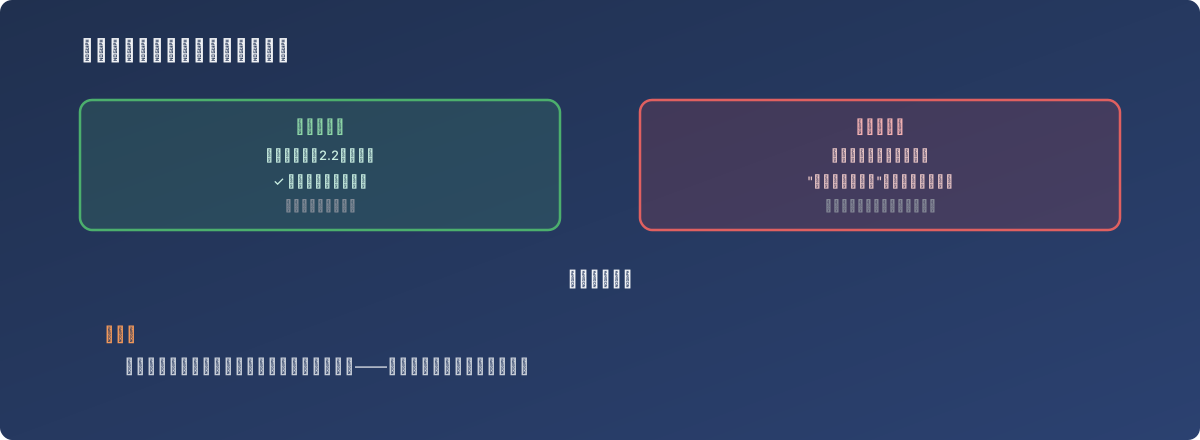
“Installed” doesn’t mean “in use” - this kind of discrepancy only shows up in Device Manager
Why this discrepancy happens
Installing a new driver package should, in theory, update the driver bound to any currently connected device. In practice, though, factors like install order, whether the device was connected during installation, and Windows’ own driver caching behavior can all lead to a new driver package landing on the system without ever actually taking over a device already running an older one. Device Manager showing “working properly” only confirms the device is recognized at the hardware level and its driver runs - it says nothing about whether that driver is the current, application-compatible one. If the fingerprint software had been adapted for the newer driver, the old one could still technically “work” while hitting compatibility issues at the verification step when paired with the upper-layer software - which is exactly what caused the authentication failures here.
The fix
Manually trigger a driver update on the device directly through Device Manager (rather than relying on the installer package’s status in Programs and Features), to make sure the driver version actually bound to the device matches the newly installed package. If needed, uninstall the device’s currently-bound old driver first, then re-trigger detection so the new driver is correctly taken over.
Lessons
- “Programs and Features” is not a reliable source for answering “is the driver up to date.” It only tells you which installer packages have been run - not which one a specific device is actually using right now. The driver details under that device in Device Manager are the only accurate source of truth;
- “This device is working properly” only verifies hardware-level connectivity - it says nothing about software compatibility. An outdated driver that still lets the hardware run can absolutely hit a compatibility issue in a specific function (like fingerprint verification) once paired with upgraded upper-layer software, and the system gives no proactive warning about this kind of fine-grained mismatch;
- When troubleshooting “everything looks like the latest version, but the feature still misbehaves,” it’s worth asking whether the place a version number is displayed and the place it actually takes effect are the same place. The two sources here (the installer list vs. the device’s actual bound driver) are a textbook example of that gap.